How to Use Notes and Outlines While Drafting
How to Use Notes and Outlines While Drafting
Introduction
Because all documents you create in a project reside in one master Scrivener file, you can access these resources faster and always have them in view. Nowhere is this handier than with the Toggle Split function. With this, you can have your working document in one split, and your notes, outline, or another reference in the other split.
Mini-Tutorial
- Start with a working document selected.
- In the upper right of the Editor, click the Toggle split icon, which looks like a window with a vertical pane down the middle. You can also Alt + click to get a horizontal split.
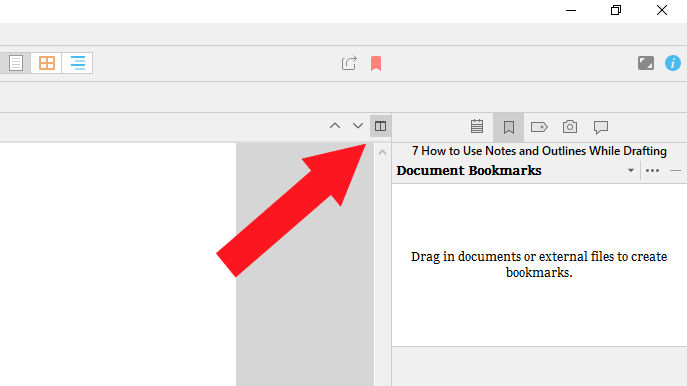
- Click the side of the screen you want your notes to appear. The screen boundaries will darken when active.
- Go to the Binder and click the file with your notes. Your notes will appear in the active window on the split-screen.
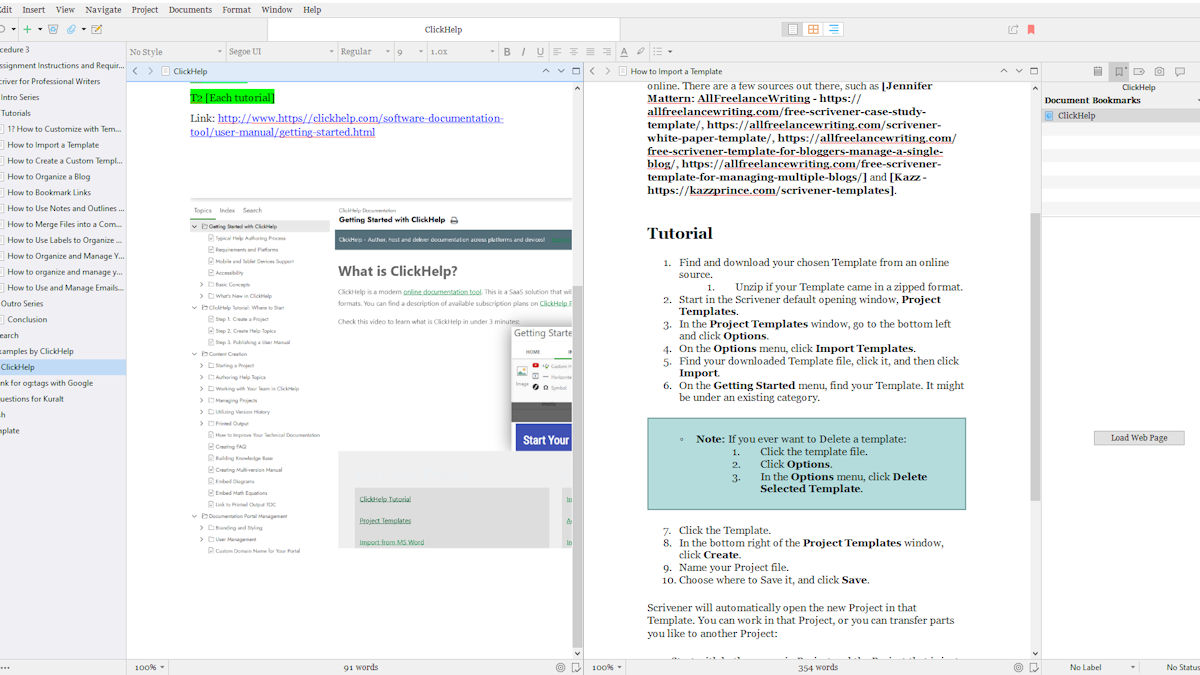
- Point to the boundary of the split screens. When you see your pointer switch to a bar with opposite-facing arrows, click and drag the boundary to how much of your draft you want to see once you have your notes visible.
Conclusion
That’s how to view two documents at once. No more switching tabs for Google Docs or endless scrolling or pulling up multiple slow MS Word documents. In Scrivener, everything related to your project is together, visible, and fast to pull up next to another document.
Next, in a mini-tutorial, you learn how to merge a series of documents. For instance, if you prefer to work on your technical report with each section as a separate document in a folder, you can merge those files when you finish.
Created with the Personal Edition of HelpNDoc: Single source CHM, PDF, DOC and HTML Help creation