How to Merge Files into a Complete Writing Piece
How to Merge Files into a Complete Writing Piece
Introduction
Merging comes in handy if you like to work with sections of a work in a document with the folder representing the whole piece. Alternatively, you may have started organizing certain documents as separate, but you later realize those sections are so short, they may as well be one.
However, make sure you reserve this for when you are 100% sure you want this, as it’s a chore to split the document back into its components.
Mini-Tutorial
|
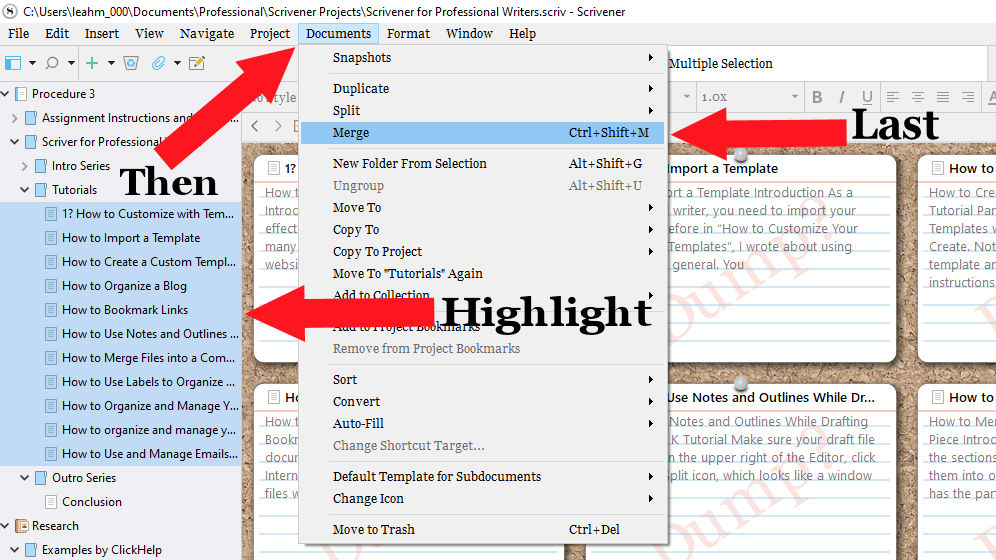
- After completing all the sections of an assignment, you can merge them into one. Add a new file to the folder that has the parts you want to combine. Make sure this new file is above the others because they will all merge in order, losing their names except for the top file.
- Rename the file as the title of your piece.
- Select that file, then hold Shift and click the file at the end of the documents you want to merge.
- From the top Menu Bar, click the Documents menu.
- From the Documents menu, click Merge. All of the documents will merge under the one at the top.
Conclusion
That’s how to merge multiple files into a large document. It has its uses as putting sections together for a whole piece or sections that don’t stand on their own. However, it’s a hassle to undo, and Scrivener 3 for Windows does not give you a warning. Merging is handy, but please use it with caution.
In the next tutorial, we will get into writers can organize and manage their social media campaigns. Being on multiple social media platforms can be a burden on professionals, but the tutorial will streamline and store your efforts.
Created with the Personal Edition of HelpNDoc: Easily create PDF Help documents