How to Import a Template
How to Import a Template
Introduction
As a professional writer, you need to import your templates. Before in How to Customize Your Project with Templates, I wrote about using templates in general. Likely, you tried it with a default Scrivener template. However, unless you are writing a nonfiction book, the default templates don’t cater to your industry.
In this tutorial, you will learn how to import a template you found online. There are a few sources out there, such as:
Jennifer Mattern of All Freelance Writing:
Kazz Prince of Scrivener Quick Start:
If you find anything, searching for “Scrivener for bloggers” is your best bet. Slowly, professional writers have to come to see Scrivener’s potential, but they have yet to develop a strong help community.
Tutorial Part I: Normal Import
- Find and download your chosen template from an online source.
- Unzip if your template came in a zipped format.
- Start in the Scrivener default opening window, Project Templates.
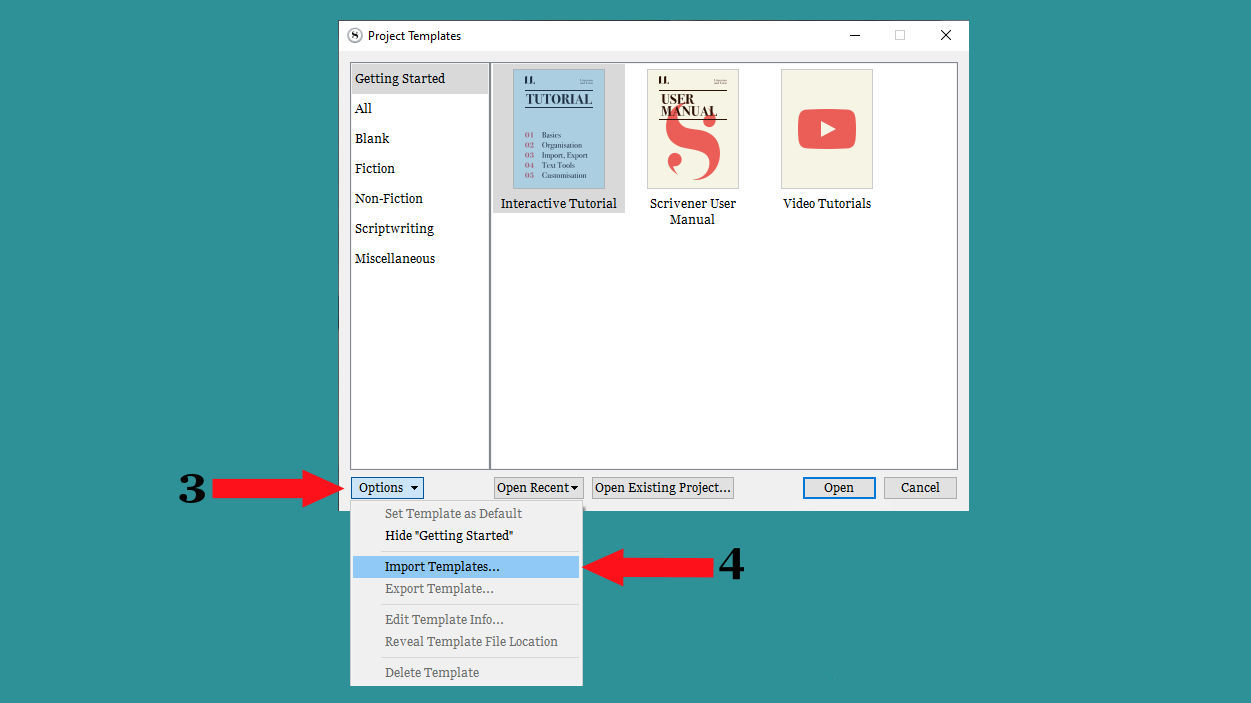
- In the Project Templates window, go to the bottom left and click Options.
- On the Options menu, click Import Templates.
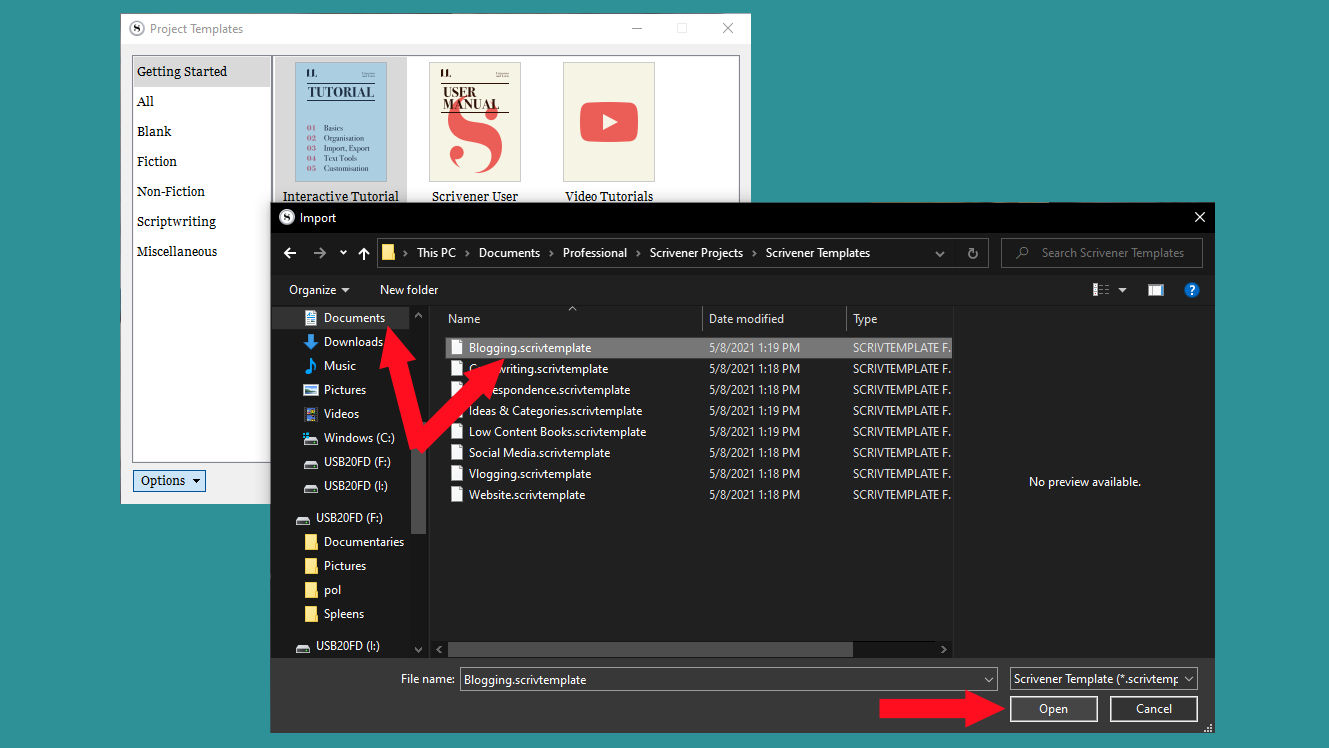
- Find your downloaded Template file, click it, and then click Open.
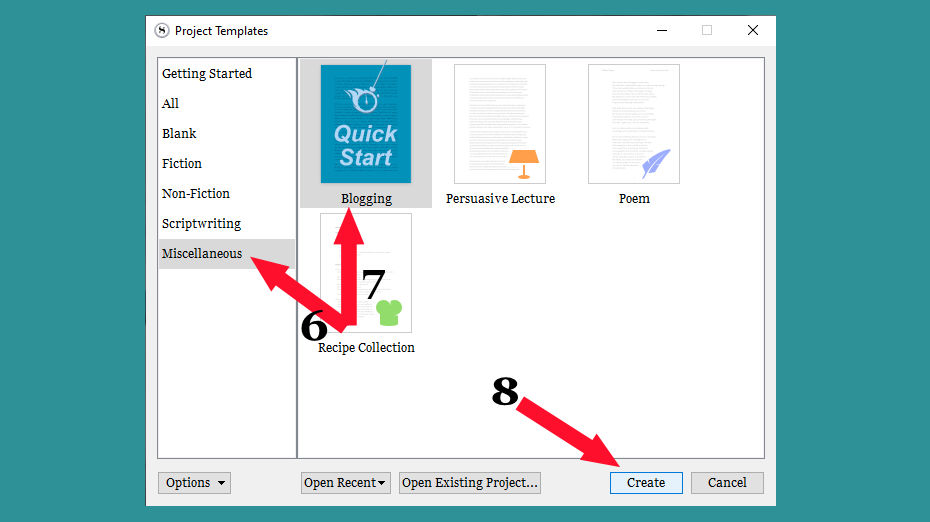
- On the Project Templates menu, find your template. It might be under an existing category.
|
- Click the template.
- In the bottom right of the Project Templates window, click Create.
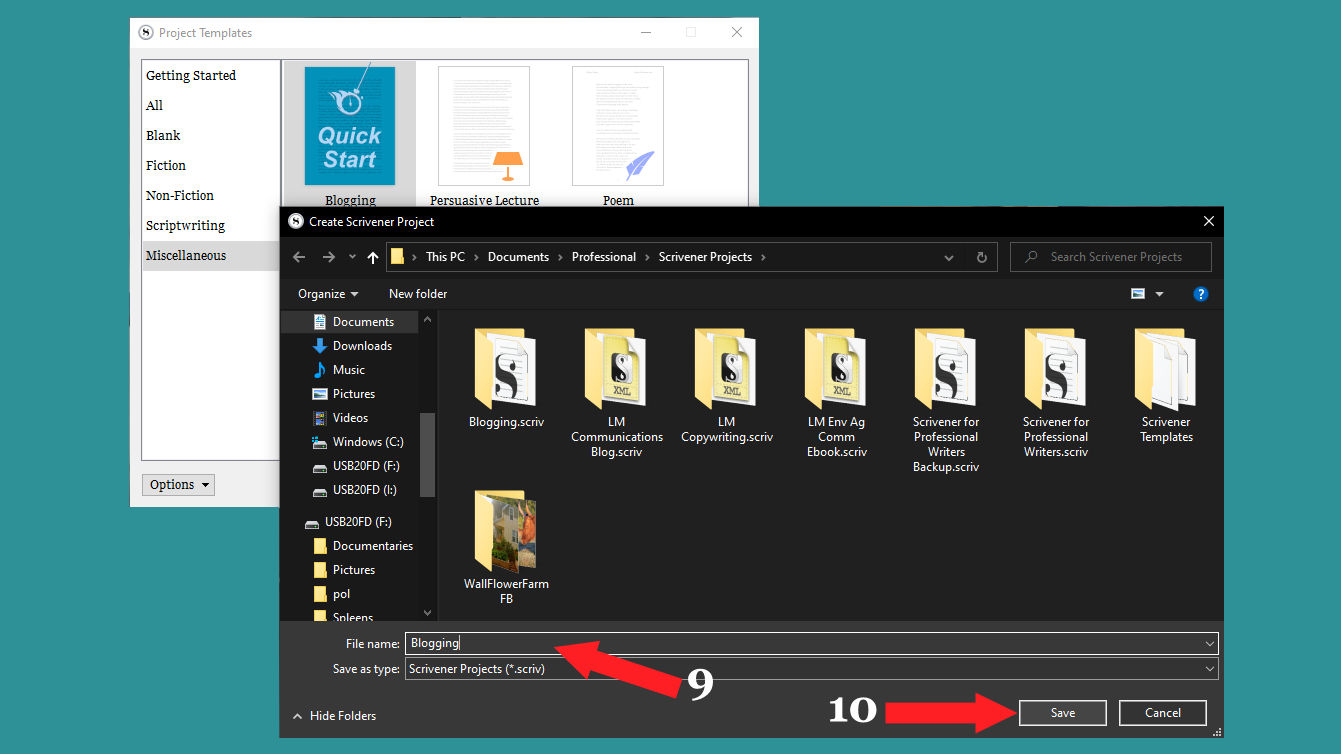
- Name your project file.
- Choose where to save it, and click Save.
Tutorial Part II: Alternative, Partial Import
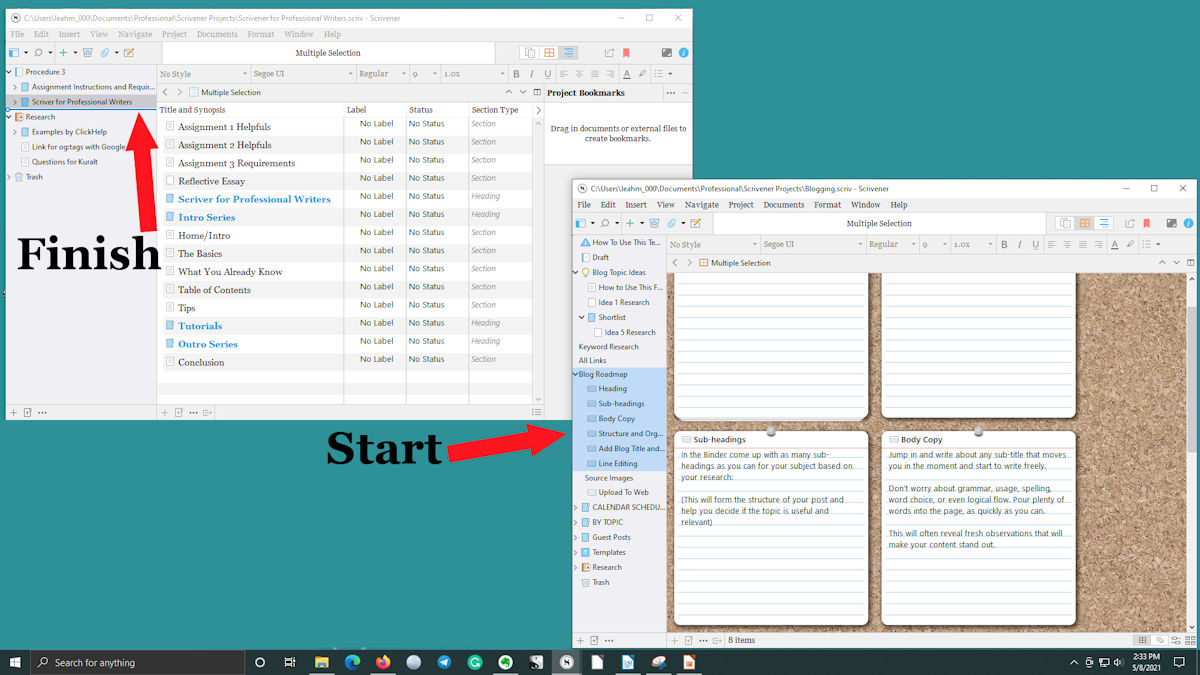
Scrivener will automatically open the new project in that template. You can work on that project, or you can transfer parts you like to another project:
- Start with both your main project and the project that is just the template open, side by side.
- Select the parts you want from the template project’s Binder. Ctrl + Shift work in Scrivener.
- Drag those selected items from the template project to your main project’s Binder.
Conclusion
That’s how to import a template. For professional writers, this is the first major step to making the most of Scrivener. Hopefully, your new templates are either perfect for your uses or are great starting points for customizing.
In the next tutorial, you will learn how to create a custom template. Everyone works differently but work within their routine. So it is worth creating templates that are tailored to your unique workflow to truly appreciate how much you can get done in Scrivener.
Created with the Personal Edition of HelpNDoc: News and information about help authoring tools and software